

Blog, Elcomsoft Blog
Cloud Forensics: Obtaining iCloud Backups, Media Files and Synchronized Data | Elcomsoft

Apple offers the most sophisticated solution for backing up, restoring, transferring, and synchronizing data across devices in the company’s ecosystem. Apple iCloud can store cloud backups and media files, synchronize essential information between Apple devices and securely synchronize sensitive information such as Health and authentication credentials. This article will explain what kinds of data are stored in iCloud and what you need to access them.
iCloud: what’s inside?
Apple iCloud contains information belonging to several different categories.
iCloud backups. This is the classic cloud-based backup and restores mechanism introduced back in 2011. iCloud backups contain a set of system and application data similar to the content of passwordless local backups, with notable exceptions for synchronized data. For example, if the user enables iCloud Photos (as a synchronized category), the photos may no longer be in iCloud backups.
Apple only provides essential backup management and does not allow downloading iCloud backups in any other way except restoring onto a physical Apple device. By logging in to an iCloud account (or accessing backups from any logged-in device), users can only view and delete backups with no other options available. One can restore a new machine from almost any backup (the iOS version on the fixed device should be the same or more recent than the OS version of the original device). Note that one can only restore from a cloud (or local) backup during the initial device setup (for new devices or devices after a factory reset).
Elcomsoft Phone Breaker was the first tool on the market to download iCloud backups without requiring authentic Apple hardware. Today, the tool can download backups created with devices running all versions of iOS up to and including iOS 16. x. To download an iCloud backup, you will need all of the following:
- The user’s Apple ID and password
- One-time code for two-factor authentication, if enabled on the user’s account
Authentication tokens cannot be used to access iCloud backups. Downloading the initial backup may take a long time, and subsequent incremental backups are downloaded much faster. We do not recommend using a VPN during the download as the speed may suffer.
- How to open: Unless you enable the “restore original file names” option, iCloud backups will be downloaded in the standard iTunes format compatible with Elcomsoft and third-party forensic tools.
Note 1: you can download backups from all devices registered with a given Apple ID. Due to the incremental nature of cloud backups, Apple keeps up to two most recent snapshots for each device, and Elcomsoft Phone Breaker downloads all images for the devices you specify.
Note 2: you can download the complete backup or selectively download only the essential parts. The selective download allows to speed up the investigation as a full download may take a while, depending on the backup size.
Note 3: Apple attempts to detect and restrict non-Apple access to iCloud backups. During one time, Apple temporarily locked accounts from which iCloud backups were obtained, and thisthis is not the case; it never occurred when accessing other data types.
Note 4: Apple only provides 5GB of free cloud space, which practically rules out the backup functionality of iCloud (except temporary iCloud backups). An iCloud+ subscription offers 50GB of cloud space, which might be enough to store cloud backups.
Temporary iCloud backups. This new type of backup appeared in iOS 15 to solve the problem of insufficient space in the user’s iCloud account when transferring data to a new Apple device or to restore it onto the same device after a factory reset. Temporary iCloud backups do not count against the iCloud storage quota and are retained for 21 days and automatically deleted afterward. Our tool can support the extraction of quick iCloud backups. More in iOS 15 Forensic Implications: Temporary iCloud Backups.
Downloading a temporary iCloud backup is subject to the same authentication rules and limitations as regular cloud backups.
Synchronized data. These data include calendars, contacts, notes, and many other data synchronized by Apple apps.
To download synchronized data from the user’s iCloud account, you will need all of the following:
- The user’s Apple ID and password
- One-time code for two-factor authentication, if enabled on the user’s account
Alternatively, you may use a supported authentication token to access synchronized data.
- How to open: Synchronized data are downloaded raw and stored in a custom SQLite database. Elcomsoft Phone Viewer is the only product that supports this data.
Files. iCloud also serves as a file storage. By default, any files downloaded by the user through Safari land in an iCloud-synced folder. iCloud Files also include files from macOS computers, Books, and more. iCloud Files are accessible on all devices sharing a standard Apple ID.
Extracting files from the user’s iCloud account requires all of the following:
- The user’s Apple ID and password
- One-time code for two-factor authentication, if enabled on the user’s account
Files can also be extracted with a supported authentication token.
iCloud Photos. This service uploads all of your photos and videos to iCloud and keeps them up to date across your devices. Technically, iCloud Photos belong to synchronized data, but we listed it separately because photos may belong to several different categories, sometimes simultaneously.
Downloading iCloud Photos requires all of the following:
- The user’s Apple ID and password
- One-time code for two-factor authentication, if enabled on the user’s account
iCloud Photos belong to the synchronized data category, and, as such, they can be accessed with a supported authentication token.
My Photo Stream. This is an older incarnation of the media storage service that uploads the most recent photos and keeps them in iCloud for 30 days. My Photo Stream is now legacy and is no longer available for newly opened Apple IDs. My Photo Stream and iCloud Photos can be enabled or disabled individually, which may result in two copies of the same picture stored in the cloud.
My Photo Stream is a legacy service unavailable for Apple IDs created over the past several years. For this reason, Elcomsoft Phone Breaker does not support the extraction of My Photo Stream.
End-to-end encrypted data. Technically, end-to-end encrypted records belong to synchronized data. However, these data are encrypted with a key that can be unlocked with a screen lock passcode (iOS) or macOS account password of one of the trusted devices. End-to-end encrypted data include iCloud keychain (authentication data and passwords), Health, Safari bookmarks and history, call history, iMessages, and several other categories.
Downloading end-to-end encrypted data requires all of the following:
- The user’s Apple ID and password
- One-time code for two-factor authentication, if enabled on the user’s account
- Screen lock passcode or system password of a trusted Apple device with the same Apple ID
You cannot use authentication tokens to access end-to-end encrypted data.
Authentication tokens
Authentication tokens are stored on the user’s computer to help installed Apple tools avoid re-authentication. In the past, authentication tokens were transferrable and could be used to access information in iCloud from another computer. Today, authentication tokens are non-transferable and can only be used on the computer they were initially created on. When it comes to Elcomsoft Phone Breaker, you can only use authentication tokens created on macOS computers (Windows tokens are useless) and only on the particular macOS computer, the pass was built on, which essentially limits the use of authentication tokens.
All previously created authentication tokens immediately expire if the user changes their Apple ID/iCloud password. In addition, the tickets are only valid for a limited time; we don’t know their lifespan.
Supported (non-expired, macOS, same physical computer) authentication tokens can be used to access the following types of data:
- Synchronized data except for end-to-end encrypted categories
- iCloud Photos
- iCloud files
iCloud extraction steps
To perform an iCloud extraction, you need all of the following.
- Elcomsoft Phone Breaker (the latest version)
- Primary authentication data: login, password, and a way to pass two-factor authentication
- To access end-to-end encrypted data: screen lock passcode or system password from one of the user’s trusted devices (the list will be displayed in the extraction wizard)
First, run Elcomsoft Phone Breaker and select between iCloud backups and synchronized data. Since downloading an iCloud backup may lead to a temporary account lock, we recommend starting by obtaining synchronized data.

When selecting the types of data to extract, note the different check box colors. If a specific kind of data is orange-colored, the category is end-to-end encrypted, and you will require a screen lock passcode or a system password of one of the user’s trusted devices. If you don’t know the passcode, clear all end-to-end encrypted categories.
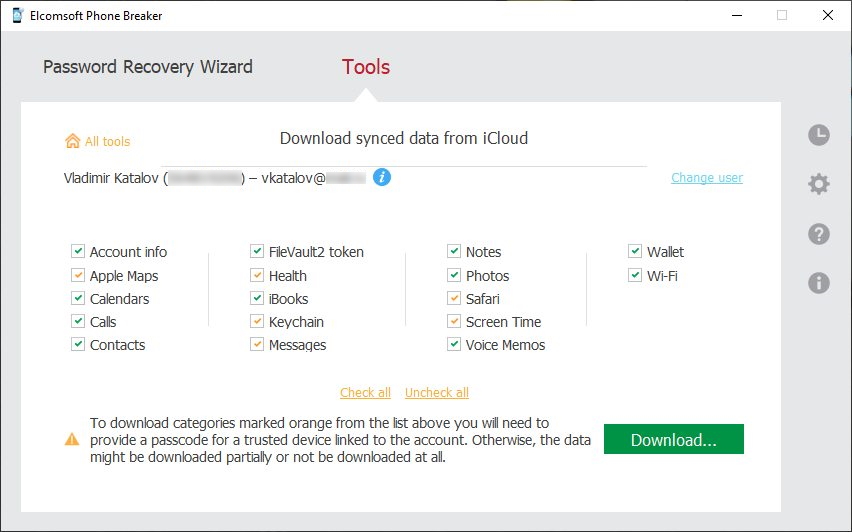
Elcomsoft Phone Breaker will download the list of trusted devices if you select at least one end-to-end encrypted type of data.
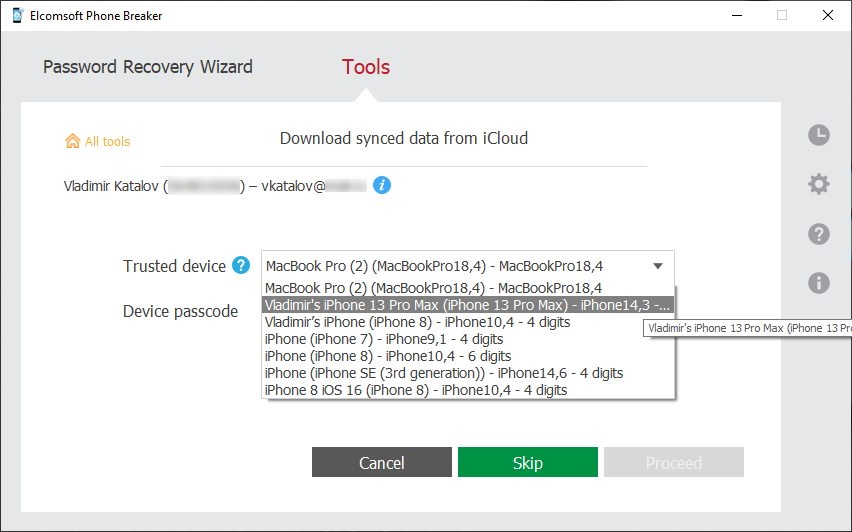
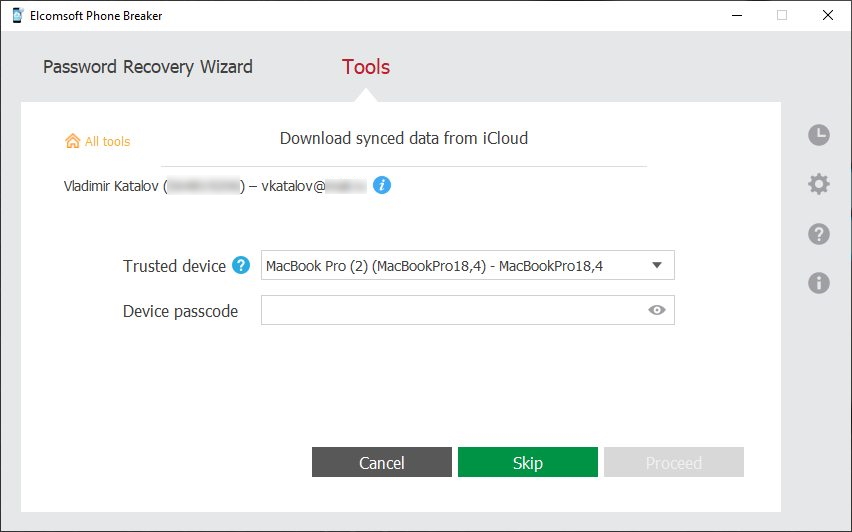
You will need to select one of the trusted devices, then specify its screen lock passcode or system password to continue.
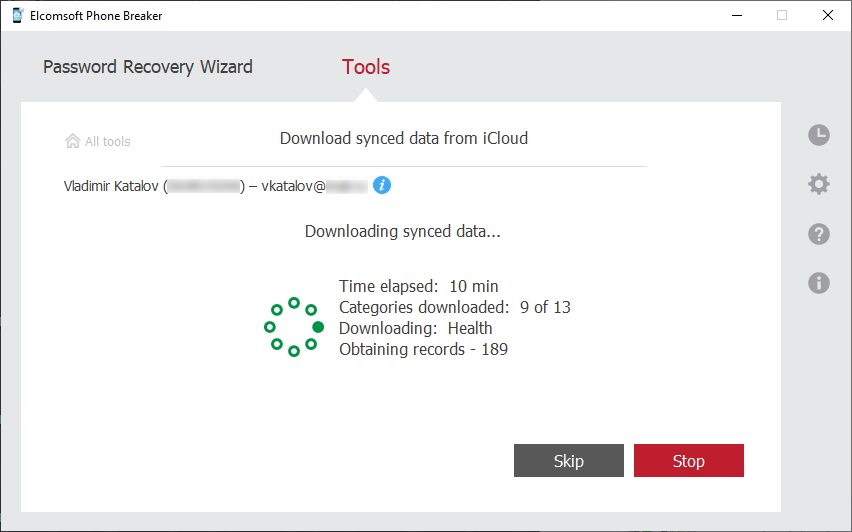
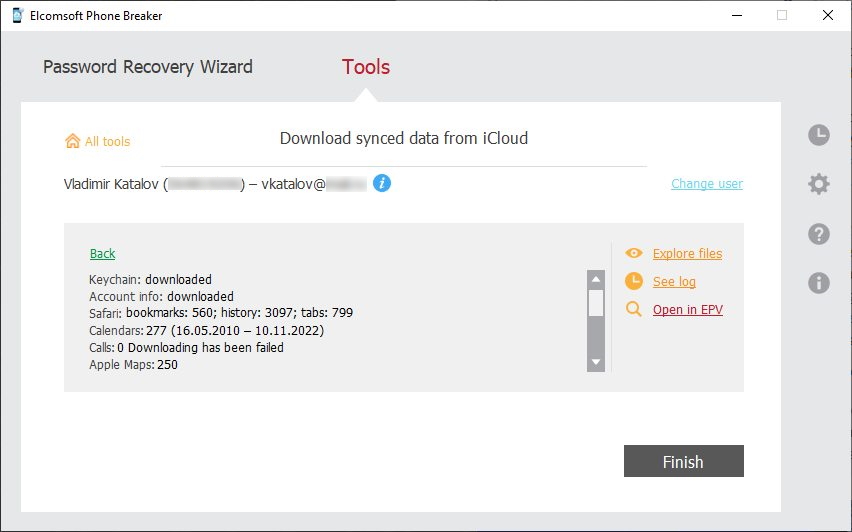
The data will be downloaded. The download may take a while, depending on the size of the data and your Internet connection speed.
Downloading iCloud backups
To download iCloud backups, select the first option in Elcomsoft Phone Breaker.

Provide the user’s Apple ID and password.

Most Apple accounts nowadays are protected with two-factor authentication.

Specify the type of two-factor authentication. The most common types are “trusted device” (sends a push message to all of the user’s trusted devices that are online and connected to the Internet), “text message” (an SMS to the authorized SIM card), and “code generator” (a time-limited one-time password generated from the Settings app on a trusted device, which may remain offline). The authentication process is self-explanatory.

Once you’ve passed two-factor authentication, you can see the list of available backups. Some devices may have several snapshots, which are incremental backup copies. Currently, Apple keeps up to two images per device. Click “See details” to view snapshot data. Elcomsoft Phone Breaker will download all snapshots and produce complete backups for each image. The available options are:
Restore original file names: gives extracted files the same terms as on the device. Select this option if you plan to analyze the backup manually. Keep it clear if you plan to use a third-party forensic tool to analyze the data.
Download only specific data: selective download allows quickly extracting only the essential bits and pieces. Keep it clear if you plan to use a third-party forensic tool to analyze the data.

Click “Download” to download the backup. The process may take a while.

Once the backup is downloaded, you may open it in Elcomsoft Phone Viewer by clicking the “Open in EPV” link. Clicking on the “eye” icon opens the folder containing the backup in File Explorer (Win) or Finder (Mac). Third-party tools can be used to analyze iCloud backups downloaded with Elcomsoft Phone Breaker if you keep both options “Restore original file names” and “Download only specific data” clear.


ElcomSoft Phone Breaker
Gain full access to information stored in FileVault 2 containers, iOS, Apple iCloud, Windows Phone and BlackBerry 10 devices! Download device backups from Apple iCloud, Microsoft OneDrive and BlackBerry 10 servers.
Unlock and Decrypt Protected Data
Book a session with our specialist to discover how Elcomsoft helps organization with their complete range of mobile and computer forensic tools, corporate security and IT audit products.
Comments are closed
Read Next:


